

In this tutorial, you will create a tracking request. A tracking request tells Terminal49 which shipment or container to monitor. Each tracking request needs two values:Documentation Index
Fetch the complete documentation index at: https://terminal49-codex-docs-audit-diataxis-skill.mintlify.app/llms.txt
Use this file to discover all available pages before exploring further.
- A Bill of Lading (BOL), booking number, or container number from the carrier.
- The carrier Standard Carrier Alpha Code (SCAC).
Choose a tracking number
Supported numbers- Master Bill of Lading from the carrier (recommended)
- Booking number from the carrier
- Container number
- Container number tracking support across ocean carriers is sometimes more limited. Please refer to the Carrier Data Matrix to see which SCACs are compatible with Container number tracking.
- House Bill of Lading (HBOL) numbers
- Customs entry numbers
- Seal numbers
- Internally generated numbers, such as purchase order numbers or customer reference numbers
What happens after you create one
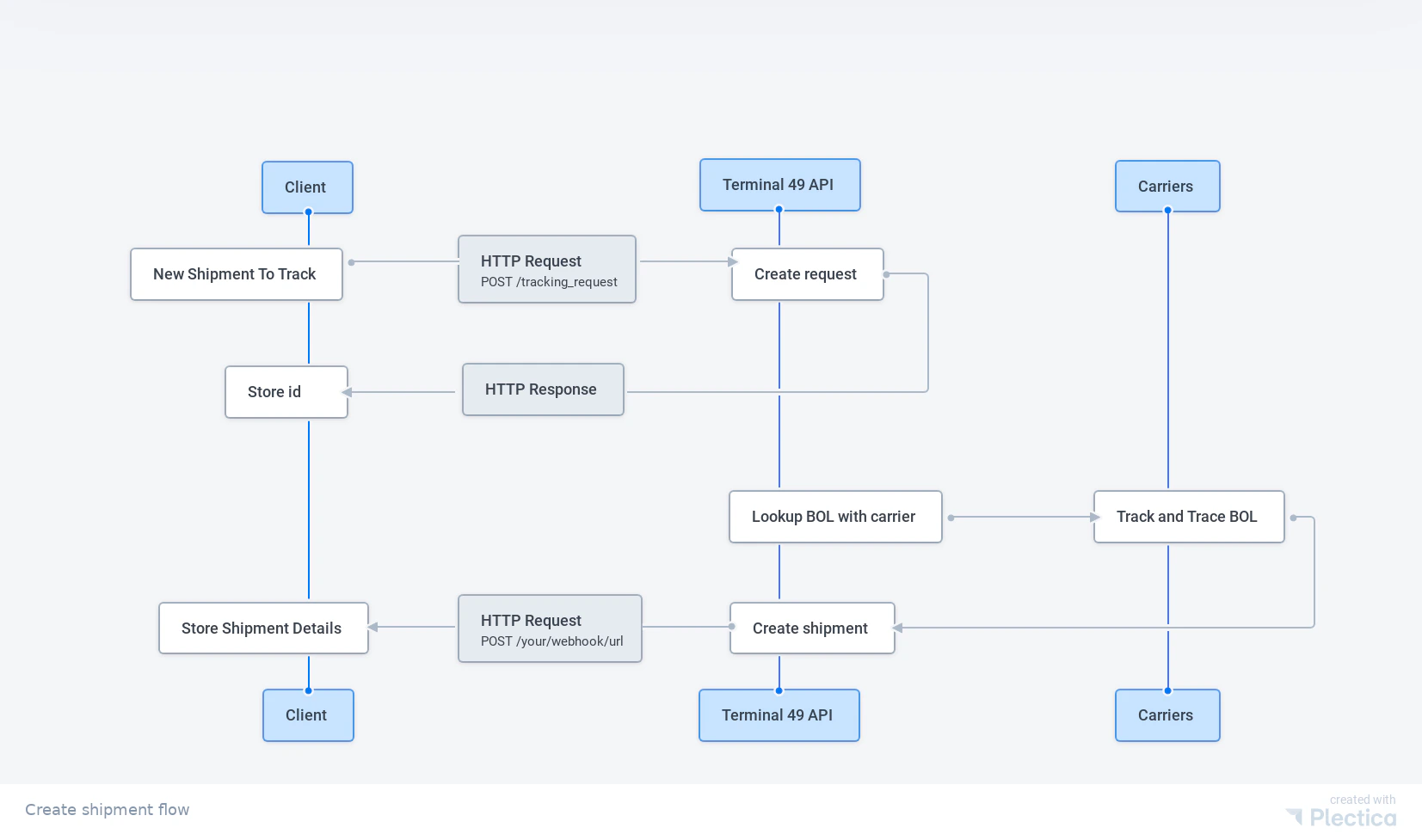
Terminal49 works asynchronously:- You send a tracking request with a shipment identifier and SCAC.
- Terminal49 accepts the request and returns a
tracking_request. - Terminal49 monitors the carrier and creates shipment/container records as data becomes available.
- If you have a webhook, Terminal49 sends updates whenever data changes.
- You can list shipments and containers at any time.
How do you receive tracking request data?
You have two options. First, you can poll for updates. Poll theGET /tracking_requests/{id} endpoint to check the status of your request. You only need the tracking request ID, which the API returns when you create the request.
The second option is to register a webhook so the API posts updates as they happen. This is more efficient and the preferred approach, but it requires some setup.
A webhook is a callback URL that receives HTTP POST requests from the Terminal49 API whenever tracking data changes.
When the Bill of Lading and SCAC match successfully, Terminal49 creates a shipment and sends the tracking_request.succeeded event to your webhook endpoint with the associated record.
If there is a problem, Terminal49 sends the tracking_request.failed event.
Authentication
The API uses a Token-prefixed API key in theAuthorization header.
Sign in to Terminal49 and go to your account API settings to get your API token.
Send the token with each API request in the Authorization header:
How to create a tracking request
ReplaceYOUR_API_KEY, REQUEST_NUMBER, and SCAC before running this example.
Anatomy of a tracking request response
The response confirms that Terminal49 accepted the request. A new request usually starts withstatus: "pending" while Terminal49 checks the carrier.
Why so much JSON? (A note on JSON:API)The Terminal49 API is JSON:API compliant. JSON:API libraries can translate the response into a full object model compatible with an ORM, which is powerful but produces larger, more structured payloads. If you parse JSON directly, this can feel verbose. For production use, consider adopting a JSON:API client library to get the most out of the format. For this tutorial, you will work with the data directly.
Try it: make a tracking request
Try it using the request maker below!- Enter your API token in the authorization header value.
- Enter a value for the
request_numberandscac. The request number must be a shipping line booking or master bill of lading number. The SCAC must be a shipping line SCAC (see data sources for a list of valid SCACs).
Rate limiting: You can create up to 100 tracking requests per minute.
You can always email us at support@terminal49.com if you have persistent
issues.
Try it: list your active tracking requests
If you have not set up a webhook to receive status updates from the Terminal49 API, you need to poll manually to check whether the tracking request succeeded or failed. Try it below. Click “Headers” and replace<YOUR_API_KEY> with your API key.
Next up: get your shipments
Now that you’ve made a tracking request, let’s see how you can list your shipments and retrieve the relevant data.Go to this
page
to see different ways of initiating shipment tracking on Terminal49.